Why is my Samsung Galaxy device slowing down and how can I speed it up?
If your Samsung Galaxy device is lagging, freezing, or running slowly, it’s often caused by full storage, too many background apps, or outdated software.
You can improve performance by managing storage, clearing memory, updating software, and using built-in optimization features.
This guide provides step-by-step instructions to help you speed up your Galaxy device.
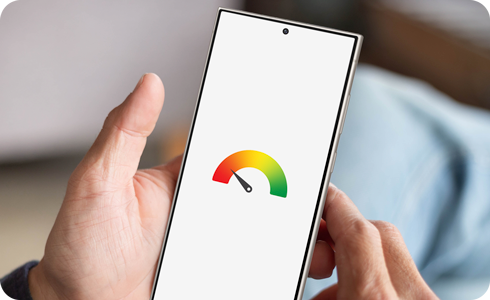
Check your storage


Step 1. Open Settings > Device care.


Step 2. Tap Storage.


Step 3. Review storage space and delete unnecessary files or apps.
Check your memory


Check your memory
Step1. Open Settings > Device care > Memory.
Step2. Select apps to close and tap Clean now to free up memory.
Additional tip
Add the Device care widget to your home screen for quick access:


Long-press the home screen > Select Widgets > Select Device care > Choose the widget and tap Add.
- Use Samsung Members for self-diagnostics
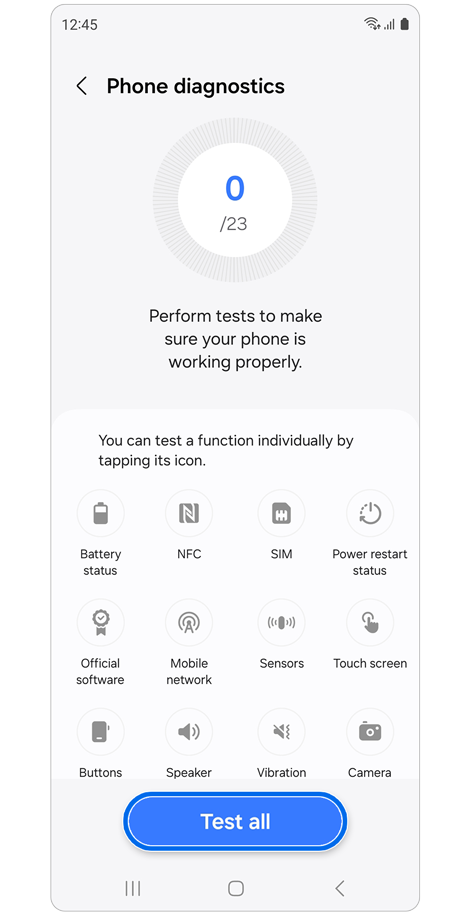
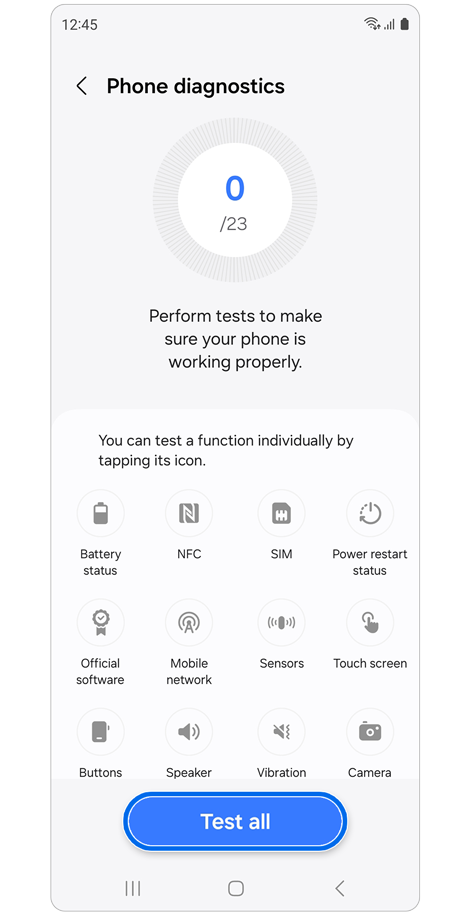
Open the Samsung Members app.
Tap Phone diagnostics in the Support tab.
Test specific features or tap Test all to check for performance issues.
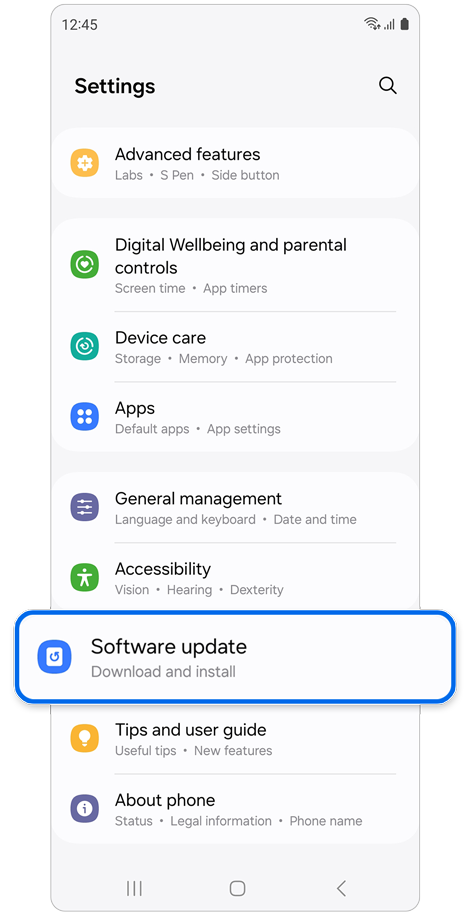
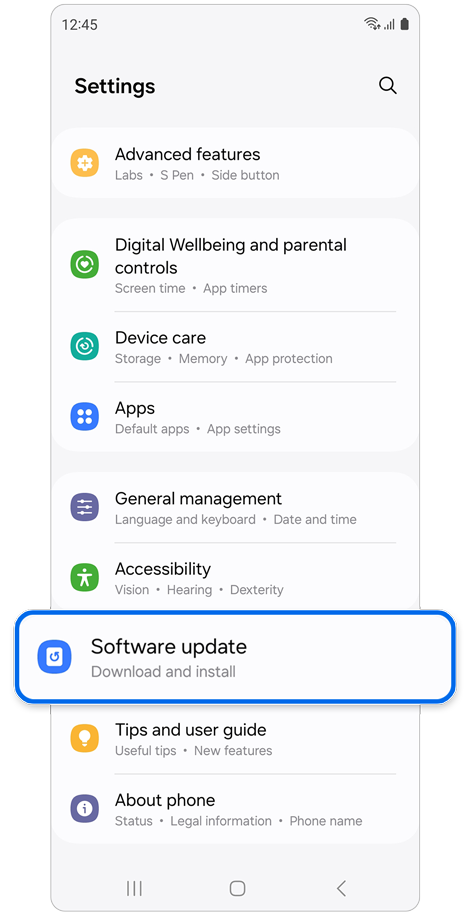
Step 1. Go to Settings > Software update.


Step 2. Tap Download and install, then Install now.
Restarting can close background apps and refresh system performance.
How to activate auto restart


Step 1. Open Settings > Select Device care.
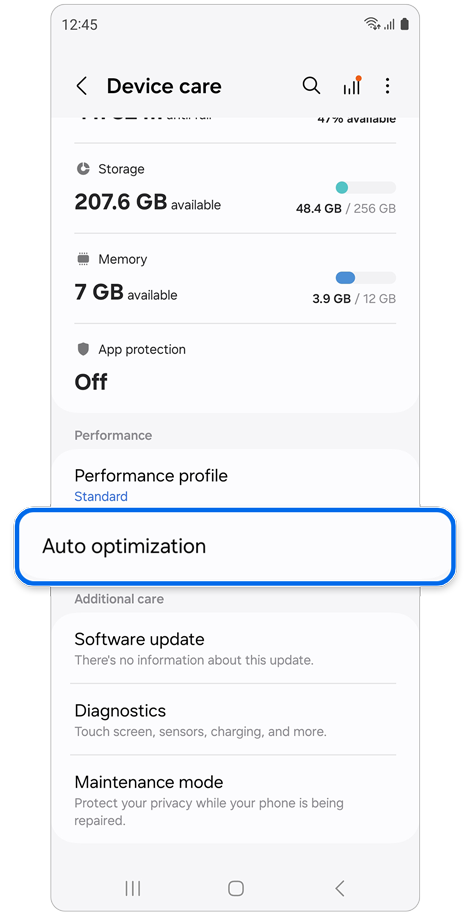
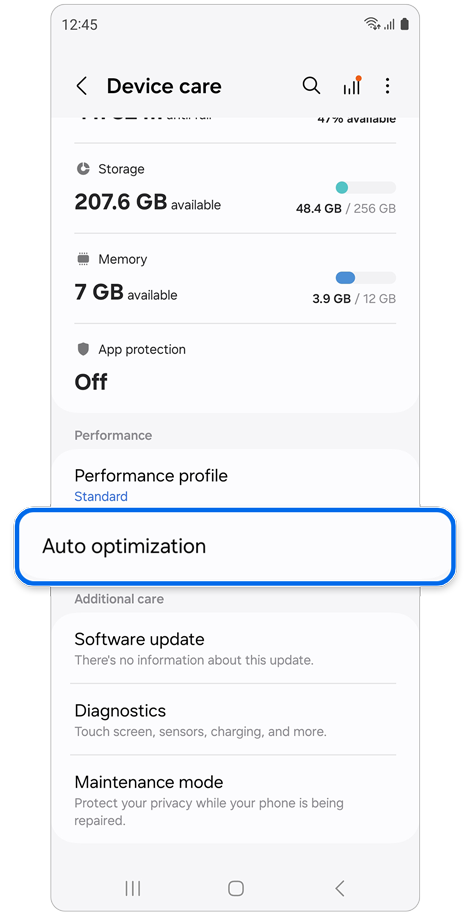
Step 2. Select Auto optimisation.
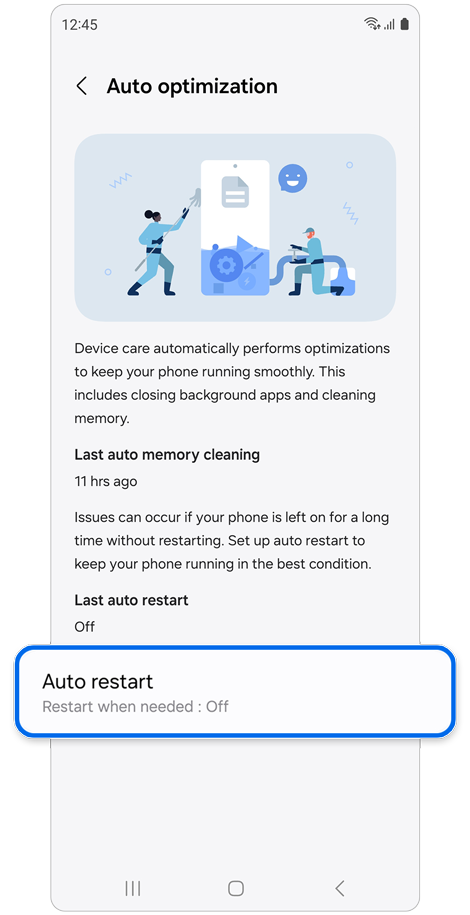
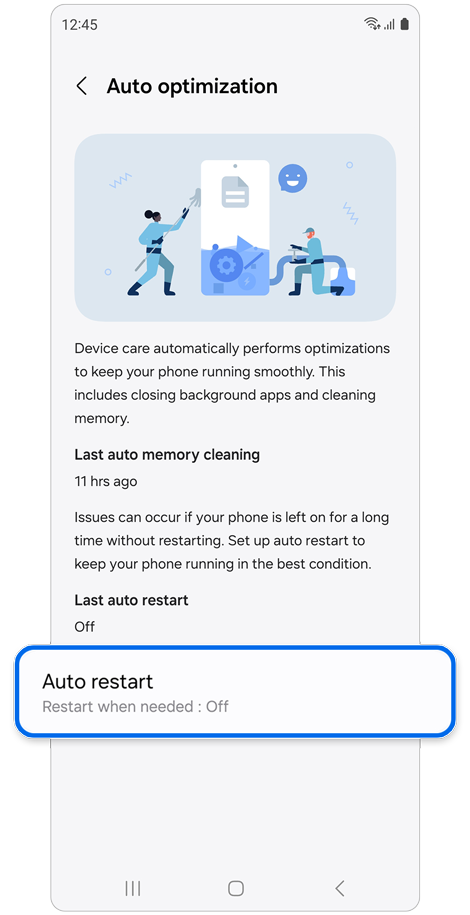
Step 3. Select Auto restart.
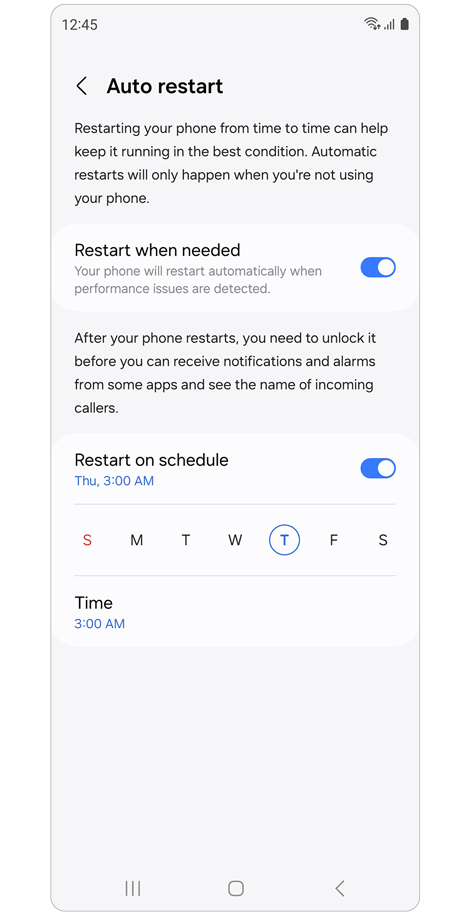
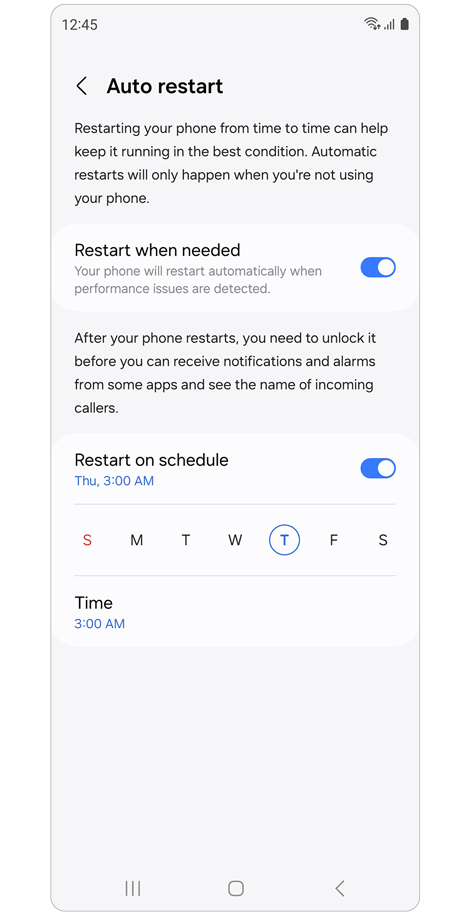
Step 4. Enable the features.
Additional tips
- Auto restart helps maintain smooth performance without manual intervention.
- Regularly clean up storage and memory using Device care for optimal speed.
This information applies to Samsung customers using Galaxy devices in all supported regions.
Thank you for your feedback!
Please answer all questions.